
Did you ever see a really cool image or even a glitch on your iPhone or iPod Touch, and you wanted to save it to show someone else? Or maybe you wanted to check it out again later? Well, it IS possible. In fact, you can take a screen grab/capture (screenshot) of any application from your iPhone/iPod Touch. I thought this was something that most iPhone/iPod Touch users already knew, but recently I’ve taught several people how to do this. So I’ve decided to write this Quick Tip. Ready to take some screenshots? Here we go:
First, be aware that you need at least firmware version 2.0 to take screenshots. If you don’t already have at least version 2.0, you can connect your device to iTunes and update the firmware.
Easy directions:
1. Hold down the home button and then press the top button.
2. The screen will flash as feedback that the screenshot was taken.
3. Go to your camera roll to view the screen grab.
Image depicting the procedure:
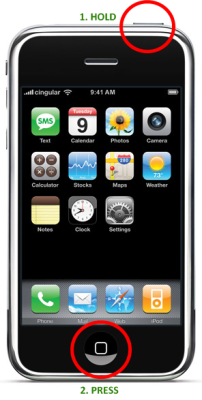
The no-nonsense way to take a screenshot on your iPhone / iPod Touch